Personal Blog — Built with Beautiful Jekyll
This repository contains my personal tech blog which you are on, built using the Beautiful Jekyll template created by Dean Attali.
The blog serves as both a writing platform and a portfolio to showcase projects, ideas, and things I’m learning along the way.
Tech Stack
This site is built and deployed using:
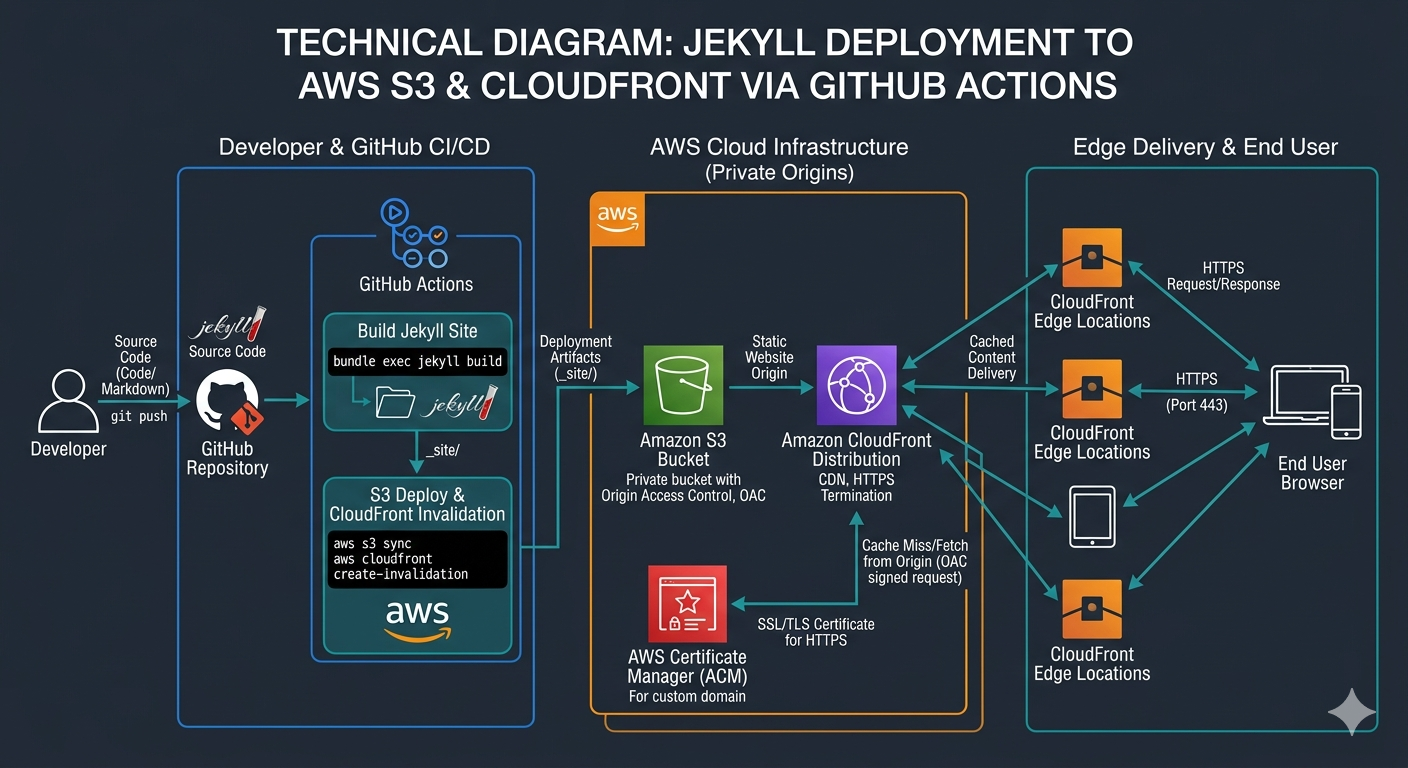
- Jekyll — Static site generator
- GitHub Actions — CI/CD pipeline for automated builds and deployments
- AWS S3 — Static website hosting
- AWS CloudFront — CDN and HTTPS delivery
Purpose
The goal of this project is to:
- Share knowledge and document my learning journey
- Maintain a consistent writing habit
- Showcase technical projects and experiments
Process to Create
I wanted to build this site as an exercise in actually building something. It’s something I’ve been meaning to do more consistently.
At first, I tried using AI agents to generate the entire workflow, but the results were often too vague or missed key parts of the process. I’ve found that I learn better from full walkthroughs—whether that’s videos, documentation, or technical blog posts from others in the field.
I ended up pulling together a collection of resources that helped me get there. This guide was the most helpful, and most of the steps I followed came from it. It also goes into much more detail than I do here.
Step 1: WSL and Jekyll
I approached this step by step, focusing on each piece without worrying too much about the next.
I started by setting up Jekyll locally. The easiest way I found was to install Ubuntu using Windows Subsystem for Linux (WSL), then install all the Jekyll requirements. After that, I pulled down the Beautiful Jekyll template to use as a starting point.
Step 2: Setting Up S3 and DNS
Jekyll generates a static website, and AWS S3 can be used to host static sites.
I enabled static website hosting on S3 and uploaded my files as an initial test. Once that was working, I updated my domain registrar settings by adding a CNAME record to point to the S3 endpoint. I took a course on S3 from KodeKloud and i found that very helpful in understanding what i was doing more deeply than copying the steps from a different page and trying to understand.
Step 3: CloudFront and Certificate Manager
This step was needed to enable HTTPS and improve performance.
I set up AWS Certificate Manager to handle SSL and used CloudFront as a content delivery network (CDN) to reduce latency. After configuring CloudFront, I updated my DNS settings again to point the CNAME record to the CloudFront distribution.
Step 4: GitHub Actions
CI/CD pipelines come up often in interviews, so I wanted a way to automatically rebuild and deploy my site whenever I pushed changes to GitHub.
To do this, I created an IAM user and policy in AWS, added the necessary secrets to my GitHub repository, and configured a GitHub Actions workflow to handle the build and deployment process.
I love it when a plan comes together.